Selenium Grid Tutorial
👉Tutorial-1: Maven and Jenkins Integration
👉Tutorial-2: Selenium Framework
👉Tutorial-3: Database Testing with Selenium
👉Tutorial-4: How to Handle iFrames in Selenium WebDriver Using switchTo()
👉Tutorial-5: Cross Browser Testing using Selenium
👉Tutorial-6: How to Take Screenshot in Selenium
👉Tutorial-7: Log4j in Selenium
👉Tutorial-8: Headless Browser Testing in Selenium
👉Tutorial-9: Robot Class in Selenium WebDriver
👉Tutorial-10: AutoIT in Selenium WebDriver
👉Tutorial-11: Handling SSL Certificate Errors in Selenium
👉Tutorial-12: How to Handle AJAX Calls in Selenium
👉Tutorial-13: JavaScriptExecutor in Selenium WebDriver
👉Tutorial-14: Selenium Python Tutorial
👉Tutorial-15: How to Set Up IntelliJ IDEA with Selenium
👉Tutorial-16: Flash Testing Using Selenium WebDriver
👉Tutorial-17: Apache Ant with Selenium WebDriver
👉Tutorial-18: How to Generate XSLT Reports in Selenium
👉Tutorial-19: GitHub Integration with Selenium WebDriver and Jenkins
👉Tutorial-20: Handling Cookies in Selenium WebDriver
👉Tutorial-21: Using SoapUI with Selenium WebDriver
👉Tutorial-22: Cucumber with Selenium WebDriver
👉Tutorial-23: Selenium Firefox Profile
👉Tutorial-24: Drag and Drop in Selenium WebDriver with Practical
👉Tutorial-25: Selenium C# Tutorial
👉Tutorial-26: Object Repository in Selenium WebDriver
👉Tutorial-27: How to Scroll a Web Page in Selenium
👉Tutorial-28: Sikuli Integration with Selenium WebDriver
👉Tutorial-29: Master XPath in Selenium
👉Tutorial-30: Selenium Waits
👉Tutorial-31: Right Click and Double Click in Selenium WebDriver
👉Tutorial-32: How to Handle Proxy Authentication in Selenium
👉Tutorial-33: Comprehensive Guide to Exception Handling in Selenium
👉Selenium Grid Tutorial: What is Selenium Grid?
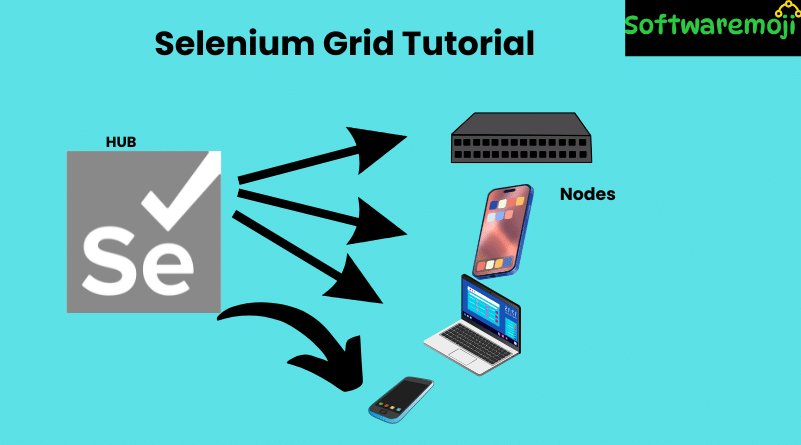
Selenium Grid Tutorial: Selenium Grid is a part of the Selenium Suite that allows you to run multiple tests across different browsers, operating systems, and machines in parallel. This is done using a Hub-Node architecture, where:
- The Hub is the central server that manages test execution.
- The Nodes are remote machines that run the tests.
Selenium Grid significantly reduces execution time by running multiple test cases simultaneously.
👉Selenium Grid Architecture
1. Hub
✔ The Hub is the central server where test scripts are loaded.
✔ There can only be one Hub in a Grid setup.
✔ The Hub distributes test execution to connected Nodes.
2. Nodes
✔ Nodes are remote Selenium instances where the tests are executed.
✔ A Grid can have multiple Nodes running on different machines and browsers.
✔ Nodes can be on different operating systems than the Hub.
How Selenium Grid Works
1️⃣ A user runs a test on the Hub.
2️⃣ The Hub routes the test to a Node that matches the required browser and OS configuration.
3️⃣ The Node executes the test and sends results back to the Hub.
👉How to Set Up Selenium Grid (Step-by-Step Guide)
Selenium Grid Tutorial: To configure Selenium Grid, we will use two machines:
- Machine A (Hub) – Central server that distributes tests.
- Machine B (Node) – Executes test scripts.
Let’s assume:
- Machine A (Hub) has IP: 192.168.1.3
- Machine B (Node) has IP: 192.168.1.4
Step 1: Download Selenium Server JAR
1️⃣ Download the Selenium Standalone Server from the official Selenium website.
2️⃣ Save the .jar file in C:\ on both Machine A and Machine B.
Step 2: Start the Hub (Machine A)
1️⃣ Open Command Prompt on Machine A.
2️⃣ Navigate to C:\ using:
bashcd C:\
3️⃣ Start the Selenium Hub using:
pgsqljava -jar selenium-server-standalone-<version>.jar -role hub
4️⃣ Selenium Grid Tutorial: The Hub is now running. You can verify by opening a browser and navigating to:
arduinohttp://localhost:4444
Step 3: Start a Node (Machine B)
1️⃣ Selenium Grid Tutorial: Open Command Prompt on Machine B.
2️⃣ Navigate to C:\ using:
bashCopyEditcd C:\
3️⃣ Start the Node and connect it to the Hub using:
pgsqljava -jar selenium-server-standalone-<version>.jar -role node -hub http://192.168.1.3:4444/grid/register
4️⃣ Verify the Node is registered by opening the Selenium Grid Console:
arduinohttp://192.168.1.3:4444/grid/console
At this point, your Selenium Grid is successfully set up, and you can start executing test cases remotely.
👉When to Use Selenium Grid?
Selenium Grid Tutorial: Cross-Browser Testing: Run tests on different browsers (Chrome, Firefox, Edge, etc.).
Cross-Platform Testing: Test applications on various operating systems (Windows, macOS, Linux).
Parallel Test Execution: Reduce test execution time by running multiple tests simultaneously.
👉Selenium Grid 1 vs. Selenium Grid 2
| Feature | Selenium Grid 1 | Selenium Grid 2 |
|---|---|---|
| Separate Remote Control | Uses a different RC server | Bundled with Selenium Server |
| Apache Ant Installation | Required | Not required |
| Supports WebDriver? | No | Yes |
| Max Browsers per Remote Control | 1 | Up to 5 |
👉Designing Test Scripts for Selenium Grid
Selenium Grid Tutorial: To execute tests on Selenium Grid, we use:
DesiredCapabilities– Defines the browser and OS for the test.RemoteWebDriver– Specifies the remote machine (Node) to run the test.
Example: Running Tests on Selenium Grid
javaimport org.openqa.selenium.Platform;
import org.openqa.selenium.WebDriver;
import org.openqa.selenium.remote.DesiredCapabilities;
import org.openqa.selenium.remote.RemoteWebDriver;
import java.net.MalformedURLException;
import java.net.URL;

public class SeleniumGridTest {
    public static void main(String[] args) throws MalformedURLException {
        DesiredCapabilities cap = new DesiredCapabilities();
        cap.setBrowserName("chrome");
        cap.setPlatform(Platform.WINDOWS);

        WebDriver driver = new RemoteWebDriver(new URL("http://192.168.1.3:4444/wd/hub"), cap);
        driver.get("https://www.google.com");
        System.out.println("Title of the page: " + driver.getTitle());
        driver.quit();
    }
}
Explanation:
✔ setBrowserName("chrome") – Specifies the browser.
✔ setPlatform(Platform.WINDOWS) – Specifies the operating system.
✔ new RemoteWebDriver(new URL("http://192.168.1.3:4444/wd/hub"), cap) – Connects to the Selenium Hub.
👉Configuring Sele:nium Grid with JSON
Selenium Grid Tutorial: Selenium Grid can also be configured using a JSON file instead of the command line.
Steps to Configure JSON for Selenium Grid
Step 1: Create a JSON Configuration File for Hub
1️⃣ Create a new text file hubConfig.json and add:
json{
  "port": 4444,
  "role": "hub"
}
Step 2: Start the Hub Using JSON
Run this command:
pgsqljava -jar selenium-server-standalone-<version>.jar -role hub -hubConfig hubConfig.json
Step 3: Create a JSON Configuration File for Node
Selenium Grid Tutorial: Create a new text file nodeConfig.json and add:
json{
  "capabilities": [{
      "browserName": "chrome",
      "maxInstances": 5
  }],
  "hub": "http://192.168.1.3:4444",
  "role": "node"
}
Step 4: Start the Node Using JSON
Run this command on Machine B:
pgsql java -jar selenium-server-standalone-<version>.jar -role node -nodeConfig nodeConfig.json
Now your Selenium Grid is configured using JSON.
👉Summary
✔Selenium Grid Tutorial: Selenium Grid allows parallel test execution across different browsers, OS, and machines.
✔ Hub-Node architecture distributes test execution efficiently.
✔ Setup involves running a Hub and multiple Nodes.
✔ Tests are executed using DesiredCapabilities and RemoteWebDriver.
✔ JSON configuration provides an alternative setup method.
By setting up Selenium Grid, you can save time, ensure cross-browser compatibility, and improve test efficiency.